


money counting machine
Money Counter Software: How to Connect Your Counter to a PC, Save Count Records and Export Reports
Nov
A money counter shows the result on its display, and it disappears as soon as the next count starts. If two employees later disagree about an amount handed over two days ago, all you have left is memory and a handwritten note, unless you use money counter software.
The software closes that gap: you connect the counter to a computer, every count is saved with its details and serial numbers, and you can export reports to Excel or PDF. This guide covers exactly what the software records, what you need to run it, and when a printer is enough instead.
What Does Money Counter Software Record From Each Count?
- Count results and details shown on the computer screen.
- Serial numbers of the banknotes the machine recognizes.
- History of previous counts, which you can search and browse.
- A separate report log of the reports you create, so you can reopen and print them later.
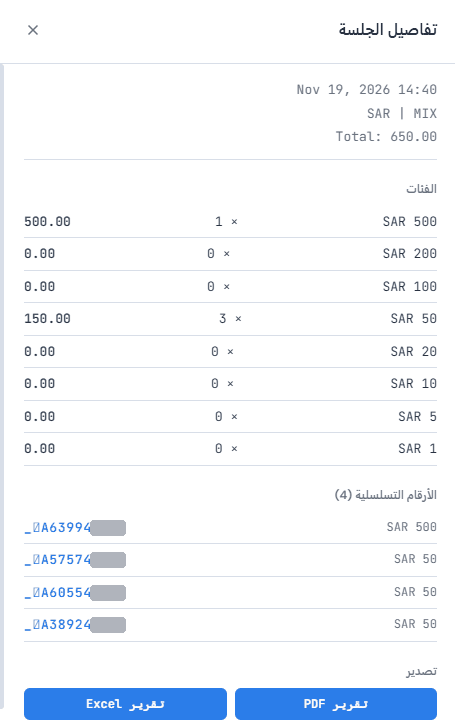
Serial numbers are the most valuable part of the record: they link each banknote to a specific count on a specific date. But the record does not prove a note is genuine; it only proves the note went through that count.
The currencies whose serial numbers can be read depend on the machine:
| Machine | Currencies with serial number reading |
|---|---|
| U-P500, U-P2000 | 3 currencies: Saudi Riyal, US Dollar, Euro |
| Magner 2000V, Magner 2000F | 5 currencies: Saudi Riyal, US Dollar, Euro, British Pound, UAE Dirham |
If serial numbers for pounds sterling or UAE dirhams matter to your business, choose Magner rather than the U-P2000.
Find a Banknote by Its Serial Number
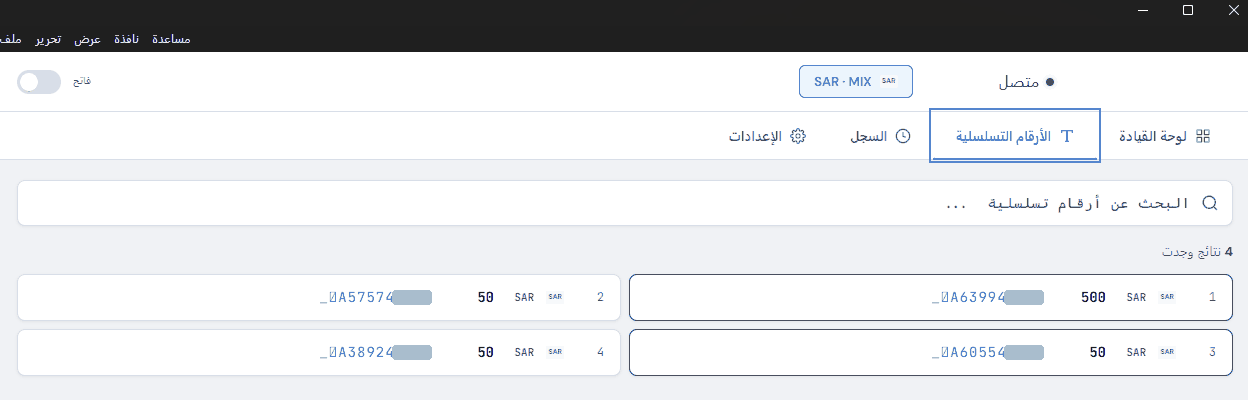
The "Serial Numbers" tab has a search box. Type the full number or part of it, and the software shows whether that note passed through your machine and in which denomination. It is the fastest way to answer a question like: "Was this note part of the cash we handed over yesterday?"
Compatible Machines and What You Need to Run the Software
Each machine family has its own version of the money counter software, and neither version works with the other family's machines.
| U-P500 / U-P2000 Software | Magner Software | |
|---|---|---|
| Machines | U-P500, U-P2000 | Magner 2000V, Magner 2000F |
| Operating system | Windows 11 | Windows 11 |
| Connection | Dedicated connection cable | Dedicated connection cable |
| Delivery | Download link + cable | Download link + cable |
| Price | SAR 250, cable included | Free with a Magner machine purchased from UV Power, cable included |
The software runs on Windows only, and we have tested it on Windows 11. See Microsoft's Windows 11 system requirements if you are buying a new computer. There is no Mac or mobile version, so make sure a Windows PC will sit next to the machine before you order.
The U-P300, L1 and U-P1000 are not supported by either version of the software, but they do support the report printer (see the comparison below).
How to Connect the Counter to Your PC and Run the Software
1. Install
After you order, you receive a download link. Download the software and install it on the Windows 11 PC that will stay next to the machine.
2. Connect
Connect the machine to the computer with the dedicated cable supplied. When the connection succeeds, a green dot and the word "Connected" appear at the top of the software. If they do not, unplug the cable and plug it back in before trying anything else.
3. Run your first count
Count a bundle on the machine as usual. The count appears immediately in the "History" tab, and the top bar shows the currency and the current counting mode (for example SAR · MIX for mixed-denomination counting in riyals). The software has four tabs: Dashboard, Serial Numbers, History and Settings.
Reports: What You Can Export and in Which Format
| Report type | When it helps |
|---|---|
| Manual, for one count or a group of counts | Handing over a large amount to a customer or a cash-in-transit company |
| Daily | Closing a shift or the day and reconciling it with your POS system |
| Weekly or monthly | Review by your accountant or management |
| Custom date range | Investigating a dispute or a discrepancy found later |
In the "History" tab, choose a date range and filter by currency or keep "All currencies". The software then shows the number of sessions, notes and the total for each day.
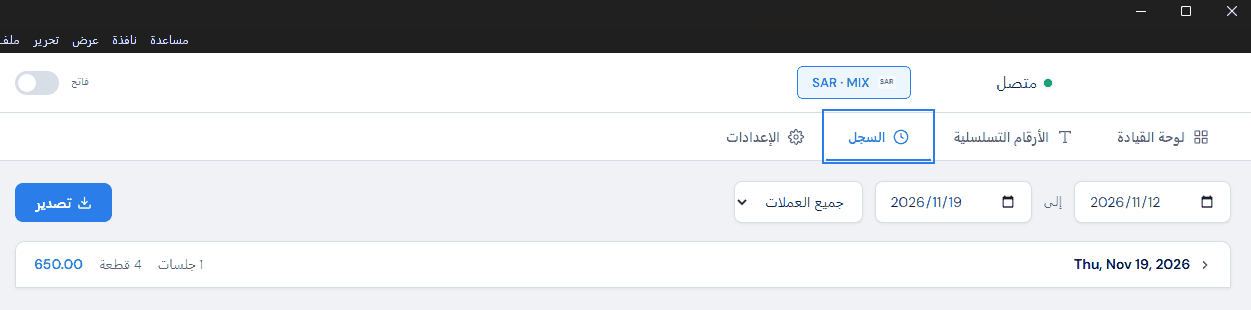
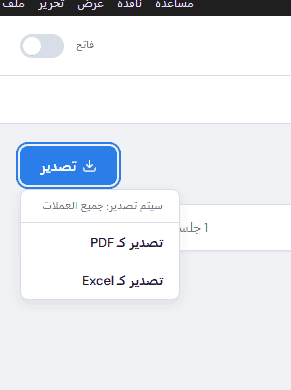
Then click "Export" and choose PDF for archiving and sharing, or Excel for accounting and analysis. You can also open a single session and export it on its own from its details screen.
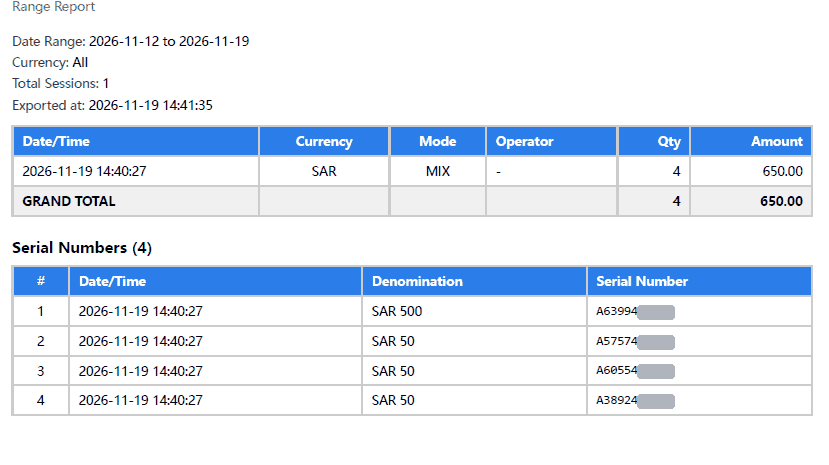
The PDF report opens with the period, currency and number of sessions, followed by a table of every session: time, currency, counting mode, operator, number of notes and amount. Below it is a table listing each note's serial number with its denomination and the time it was counted.
Dashboard: Your Counts at a Glance
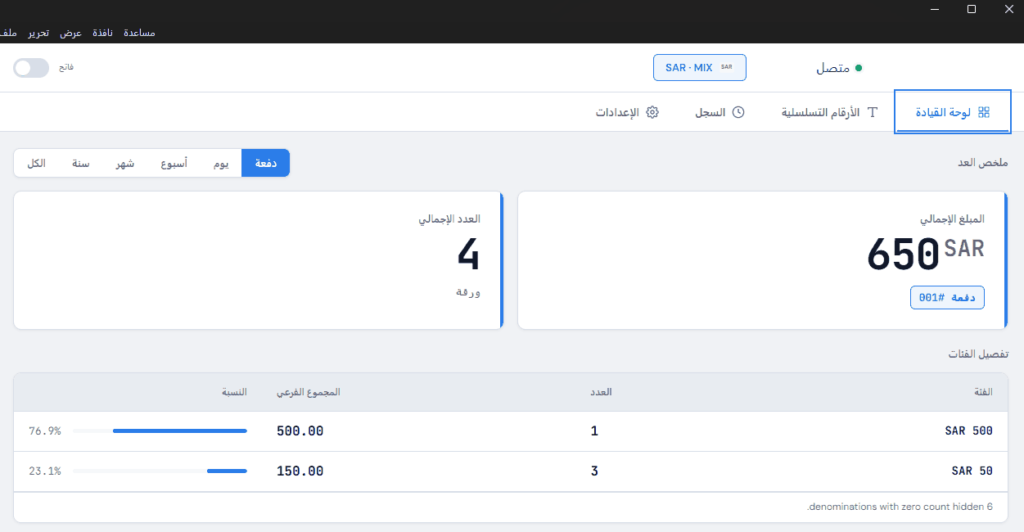
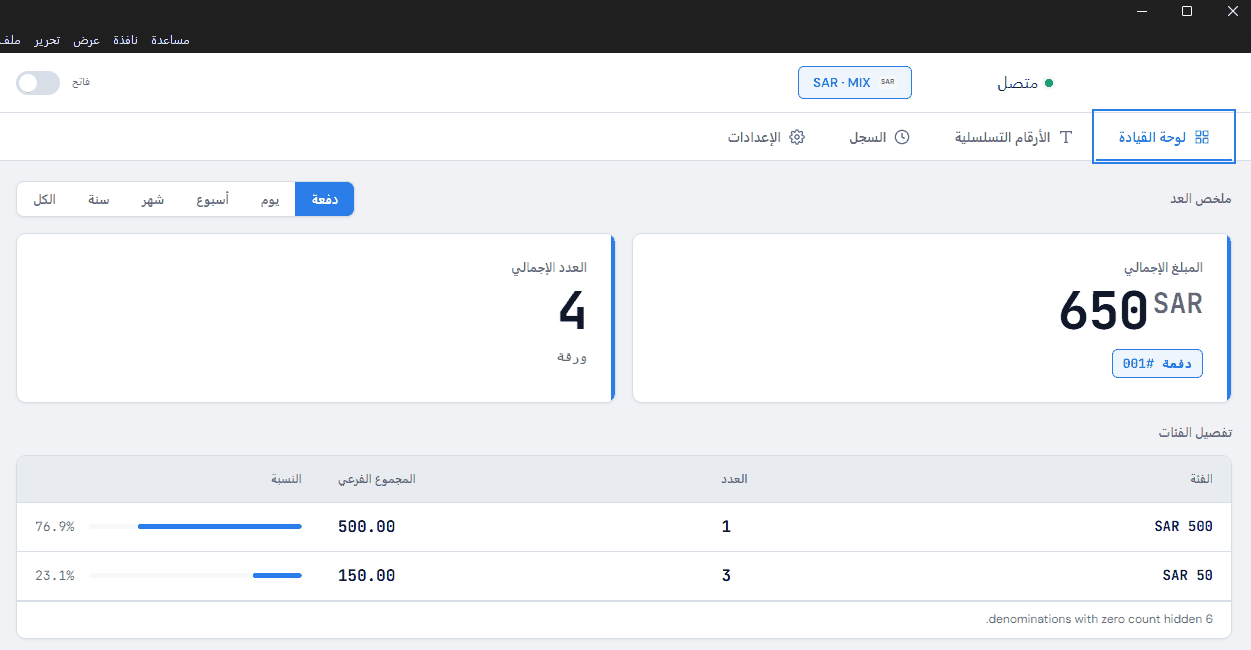
The dashboard summarizes counts for the period you choose: the current batch, today, this week, this month, this year or all time:
- Total amount and batch number.
- Total count of notes.
- Denomination breakdown: the count of each denomination, its subtotal and its share of the total. Denominations that were not counted are hidden to keep the screen uncluttered.
A status bar at the bottom of the software shows the device, user, branch, counting mode and last update time.
Money Counter Software, Printer or External Display?
None of the three replaces the others; each solves a different problem.
| The software | The printer | the external display | |
|---|---|---|---|
| What you get | A permanent, searchable record + exported reports | An instant paper receipt for every count | The customer sees the result in front of them |
| What is printed or saved | Results, serial numbers, history | Number of notes, denominations, total, serial numbers | Nothing (display only) |
| Requires a computer | Yes, Windows | No | No |
| Machines | U-P500, U-P2000 / Magner 2000V, 2000F | 58 mm printer: L1, U-P300, U-P500, U-P2000, U-P1000 / Magner printer | Display for U-P500, U-P2000 and L1 / Magner display |
| Price | SAR 250 / free with Magner | SAR 300 | SAR 200 / SAR 350 |
Rule of thumb: If you need a slip the employee signs at handover, a printer is enough. If you need to search a whole month of counts later or send a report to your accountant, you need the software. Many businesses use both.
When You Need Money Counter Software, and When You Don't
You need it if:
- You receive or hand over large amounts that could be disputed (car dealerships, gold traders, currency exchange).
- More than one employee uses the same machine, and you want a record of every count.
- Your accountant or management asks for regular reports in Excel.
You don't need it if: you count once at the end of the day, write down the total yourself, and nobody else uses the machine. In that case a printer, or nothing at all, is the simpler option.
What Money Counter Software Does Not Do
- It does not run on Mac or mobile; Windows only.
- It does not work with other machines: the U-P500/U-P2000 software does not work with Magner machines, and vice versa.
- It does not prove a note is genuine: the record documents what passed through the machine; counterfeit detection is still the job of the machine's sensors.
- Transfer to your accounting system is done through the exported Excel file.
Frequently asked questions
Does the money counter software run on Mac?
No. It runs on Windows only and has been tested on Windows 11.
Is the Magner software free?
Yes. It is free when you buy a Magner 2000V or 2000F from UV Power, and the connection cable is included.
Do I need to buy a separate cable?
No. The dedicated cable is included with both versions of the software.
Which formats can I export reports in?
PDF and Excel, either for a full period from the "History" tab or for a single session.
Does it work with the U-P300 or L1?
No. These machines support the 58 mm report printer instead.
How do I receive the software?
Via a download link after you order; the cable ships with your order.
Want to see a sample report before you order? Message us on WhatsApp and we will send you an Excel report exported from a real count, or add the software to your order.
Read also:
- Money Counting Machines for Banks and Cash-in-Transit Companies
- Professional Money Counting Machines for Companies and Banks
- Banknote serial number reading on money counters
- Money counter specifications: how to read every line
- Money Counting Machine Comparison in Saudi Arabia 2026
